
Rock Hill Ford – Does the 2026 Bronco Sport® offer wireless Apple CarPlay® and Android Auto™ near Monroe, NC?
If you drive between Monroe and Charlotte on US 74 or hop the Monroe Expressway for a quicker run to I-485, seamless phone integration matters every single day. The 2026 Ford Bronco Sport® keeps that part simple with wireless smartphone connectivity designed to cut the cord, tidy your cabin, and keep your favorite maps, playlists, and messages close at hand. As your nearby Ford team at Rock Hill Ford, we’re breaking down exactly how wireless Apple CarPlay® and Android Auto™ work in the Bronco Sport, what you can expect on local roads, and a few pro tips to make setup and daily use effortless.
What Monroe drivers can expect from the Bronco Sport’s wireless integration
The 2026 Bronco Sport Big Bend® highlights a 13.2 inch center display with wireless Apple CarPlay® & Android Auto™ compatibility. That means no USB cable is required to mirror your phone’s key apps on the center screen. You’ll see familiar icons, turn-by-turn directions from your preferred maps, hands-free calling and messaging, and your favorite audio apps with responsive steering wheel controls and voice assistance.
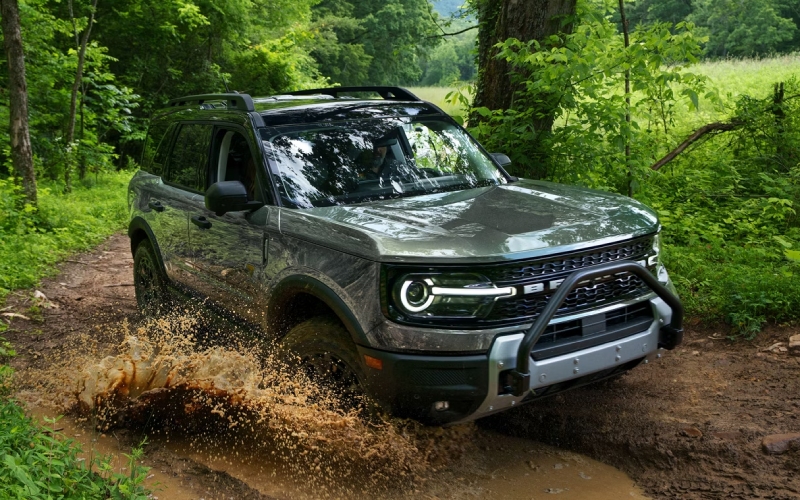
Wireless connectivity pairs well with real life around Monroe. Whether you’re navigating morning traffic past Atrium Health Union Hospital, coordinating pick-ups at Monroe High School, or heading out toward Cane Creek Park for a weekend hike, your apps appear where you need them—on the wide center display—so you can keep eyes forward and hands on the wheel. And because the Bronco Sport brings standard 4×4 with G.O.A.T. Modes® (Goes Over Any Type of Terrain), the tech isn’t just for your weekday grind—it’s a helpful co-pilot when dirt roads or trailheads are on the agenda.
How to set up wireless Apple CarPlay® and Android Auto™ in a 2026 Bronco Sport
Plan on a few minutes the first time, then the system will reconnect automatically when you start the SUV. Here’s how to get rolling.
For Apple iPhone:
- On your iPhone, turn on Bluetooth and Wi-Fi.
- Start the Bronco Sport and wait for the 13.2 inch display to fully load.
- On the vehicle screen, open Settings, then look for Apple CarPlay options and enable wireless CarPlay.
- Select Add Phone or Pair New Device on the vehicle screen and choose your Bronco Sport in your iPhone’s Bluetooth menu.
- Confirm the pairing code on both screens. Accept any prompts to allow CarPlay and sync contacts.
- Choose Use CarPlay when asked. Your iPhone apps will appear on the center display.
For Android phones:
- On your phone, turn on Bluetooth and Wi-Fi.
- Install or update the Android Auto™ app if needed.
- Start the Bronco Sport and enable Android Auto in the vehicle’s Settings.
- On the vehicle screen, tap Add Phone or Pair New Device and select the Bronco Sport in your phone’s Bluetooth menu.
- Approve the pairing code on both screens, and allow Android Auto permissions on your phone.
- Follow any on-screen prompts to complete setup. Your compatible apps now show on the center display.
Once paired, the Bronco Sport will typically prioritize the last active phone. If more than one paired device is in the cabin, you can choose the preferred device in the vehicle’s Bluetooth menu.
Tips for a smoother connection around Monroe
A clean setup usually stays solid, but a few small habits make daily use even better—especially if you swap drivers or carry multiple phones in the vehicle.
- Update devices: Keep your phone’s OS and the Android Auto™ or Apple CarPlay® app current.
- Enable in-vehicle permissions: Make sure Apple CarPlay or Android Auto is toggled on in the Bronco Sport Settings menu.
- Set a primary device: In Bluetooth settings, mark your main phone as the priority to avoid confusion when family phones are nearby.
- Mind battery settings: Aggressive battery saver modes can limit background connectivity—consider exceptions for CarPlay or Android Auto.
- Reduce interference: If connectivity hiccups, temporarily disable hotspots on other passengers’ phones.
- Quick refresh: If audio stutters, toggle Bluetooth off and back on, or restart the infotainment system during a safe stop.
How the Ford Connectivity Package complements wireless integration
Beyond mirroring your favorite apps, the Bronco Sport’s available Ford Connectivity package—one year included—adds helpful capability for your crew. With a built-in Wi-Fi® hotspot, passengers can browse, stream, or join a video call on the way from Monroe to SouthPark while your phone continues to run navigation via CarPlay or Android Auto. It’s a smart way to keep the kids entertained or give a co-worker a reliable connection on the ride to a site visit in Indian Trail.
Heading somewhere with spotty cell coverage—say a gravel access road outside Marshville or a fishing spot beyond Lake Twitty? CarPlay and Android Auto rely on your phone’s data signal for live traffic and search. Before you go, download offline map areas in your preferred app for uninterrupted turn-by-turn guidance. Pair that foresight with the Bronco Sport’s standard 4×4, HOSS Off-Road Suspension, and selectable G.O.A.T. Modes®, and you’ll be better prepared for both the road surface and your route.
A quick note on safety and convenience—wireless projection is designed to minimize distractions, but it’s still important to set your destination before pulling out of your driveway in Monroe or merging onto US 601. Use voice commands for messaging and searches, keep notifications muted if they steal your focus, and let the system read messages aloud so your attention stays where it belongs.
If you frequently switch between work and personal devices, the Bronco Sport’s system can store multiple phones. We’ll happily show you how to manage the paired-device list, set priorities, and fine-tune notification settings so weekday calls from clients come through clearly while weekend alerts stay quiet during a peaceful drive to Cane Creek Park.
If you’re new to wireless mirroring, try a hands-on demo at our store. We’ll pair your phone, walk through Maps, Waze, Apple Music, Spotify, and popular podcast apps, then show you how voice control interacts with the Bronco Sport’s steering wheel buttons. You’ll leave confident that everything works the way you like before you ever pull out of our lot.
Visit Rock Hill Ford for a personalized tech walkthrough and test drive
From Monroe, it’s an easy trip to Rock Hill Ford—jump on the Monroe Expressway to I-485 and I-77 northbound, or take a scenic backroad route if you prefer. Our product specialists will set up your wireless Apple CarPlay® or Android Auto™ on the spot, answer compatibility questions, and help you explore trims like Big Bend®, Heritage, Outer Banks®, and Badlands®. While you’re here, take advantage of our Quick Lane for routine service without an appointment, and ask our team about accessories that fit your lifestyle, from all-weather mats to roof carriers for kayaks and bikes.
Ready to see how the 2026 Bronco Sport® makes daily life in and around Monroe both simpler and more fun? Stop by for a test drive, or contact us to schedule a one-on-one tech session. We’ll make sure your phone, your routes, and your next adventure are all perfectly in sync.
Frequently Asked Questions:
Is wireless Apple CarPlay® and Android Auto™ standard on every 2026 Bronco Sport®?
The Bronco Sport Big Bend® highlights a 13.2 inch center display with wireless Apple CarPlay® & Android Auto™ compatibility. Availability can vary by model and equipment, and we can confirm the exact features on any specific vehicle in our inventory.
Do CarPlay and Android Auto use the Ford Connectivity package data?
Apple CarPlay® and Android Auto™ primarily use your phone’s data. The Ford Connectivity package—one year included—adds a built-in Wi-Fi® hotspot for passenger devices and other connected features. After the included period, services may require activation.
Can the Bronco Sport connect to more than one phone?
Yes. You can pair multiple devices and set which one connects automatically. If more than one paired device is in the vehicle, the system typically connects to the last active or the priority device you select in Settings. We’ll help you customize that during your visit.
What if my company phone has restrictions or a VPN?
Some corporate device policies can limit Bluetooth or Wi-Fi functions needed for wireless projection. If your phone is managed by your company, check with your IT team about permissions for Apple CarPlay® or Android Auto™. We can also demonstrate a USB connection as an alternative.
Will wireless CarPlay or Android Auto still work if I lose cell service on a rural road?
The connection between your phone and the Bronco Sport remains, but live services that need data may pause. Downloading offline maps for your route ahead of time ensures turn-by-turn directions continue even when coverage dips.
Request more 2026 Ford Bronco Sport information
Connect with us


